 Sprag
Windows app out now · iPhone app soon
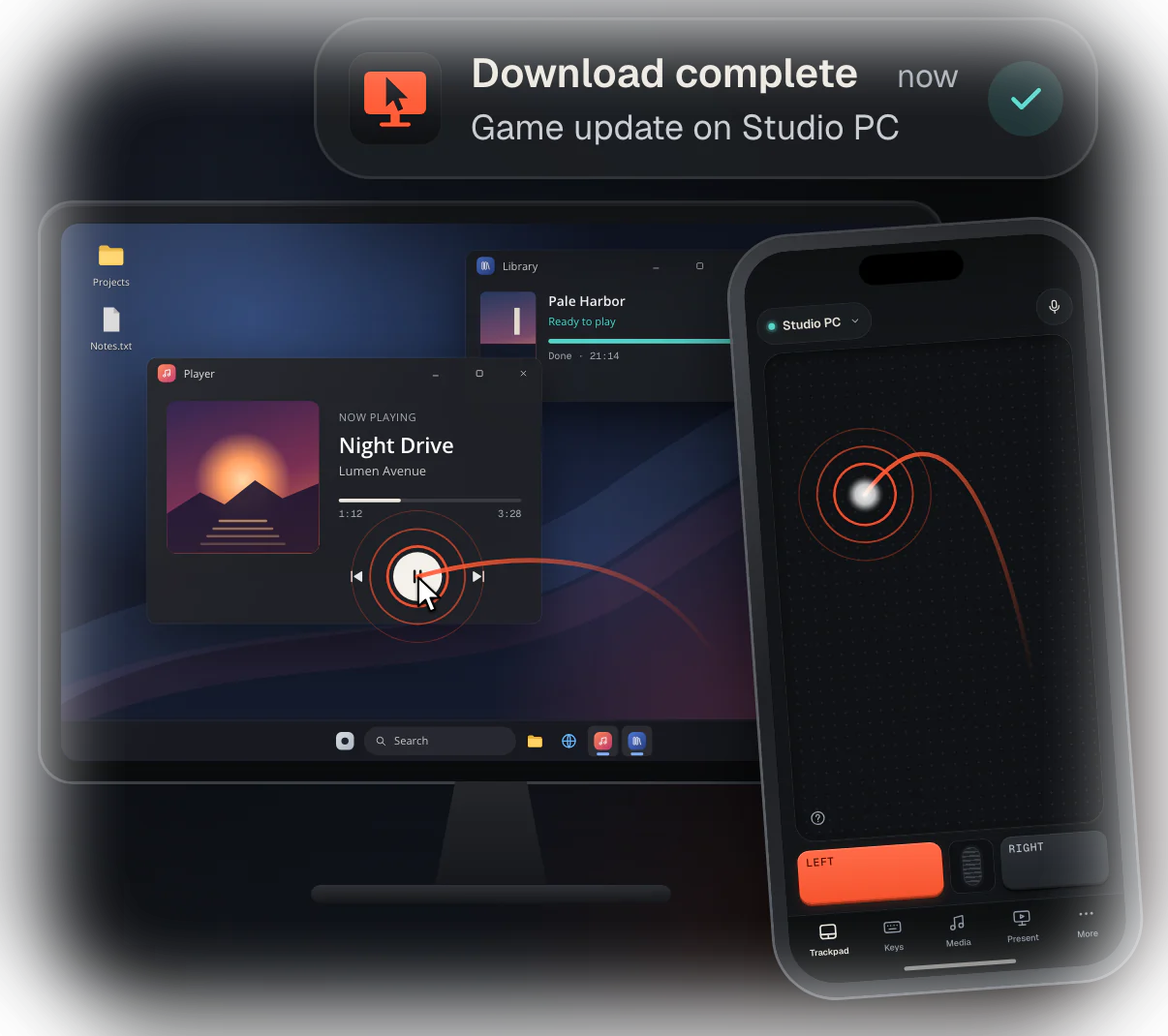
Your iPhone is your PC’s trackpad.
Trackpad, keyboard and remote for your Windows 11 PC, over your own Wi-Fi. Start a game update, walk away, and your Lock Screen tells you when it’s finished.
Free · v0.1.23 preview · 55.7 MB · Windows 11 x64
The Windows app waits for the iPhone app, which is coming to the App Store. Install it now and pairing takes seconds on day one.
- No account
- Encrypted pairing
- Stays on your Wi-Fi
- No tracking
How it works
Paired in two minutes.
No account, no cables, no settings to dig through.
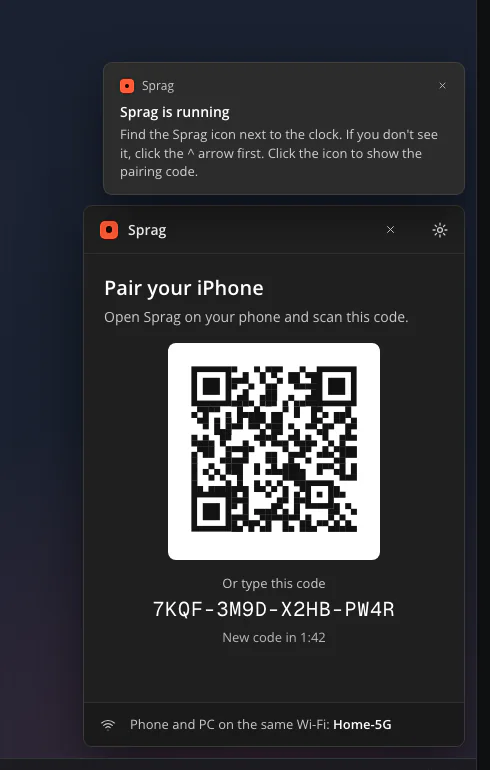
- 01Run Sprag on your PCDownload the zip, extract it and open Sprag.exe. Nothing to install: it sits next to the clock and shows a pairing code.
- 02Scan the code with your iPhoneOpen Sprag on your iPhone and scan the QR code on the PC screen. That’s the whole pairing: nothing to click on the PC.
- 03Paired for good.The PC shows which iPhone just paired, with a one-click Remove if it wasn’t you. Next time it just reconnects.
Trackpad & keyboard
Feels like a trackpad. Types like a keyboard.
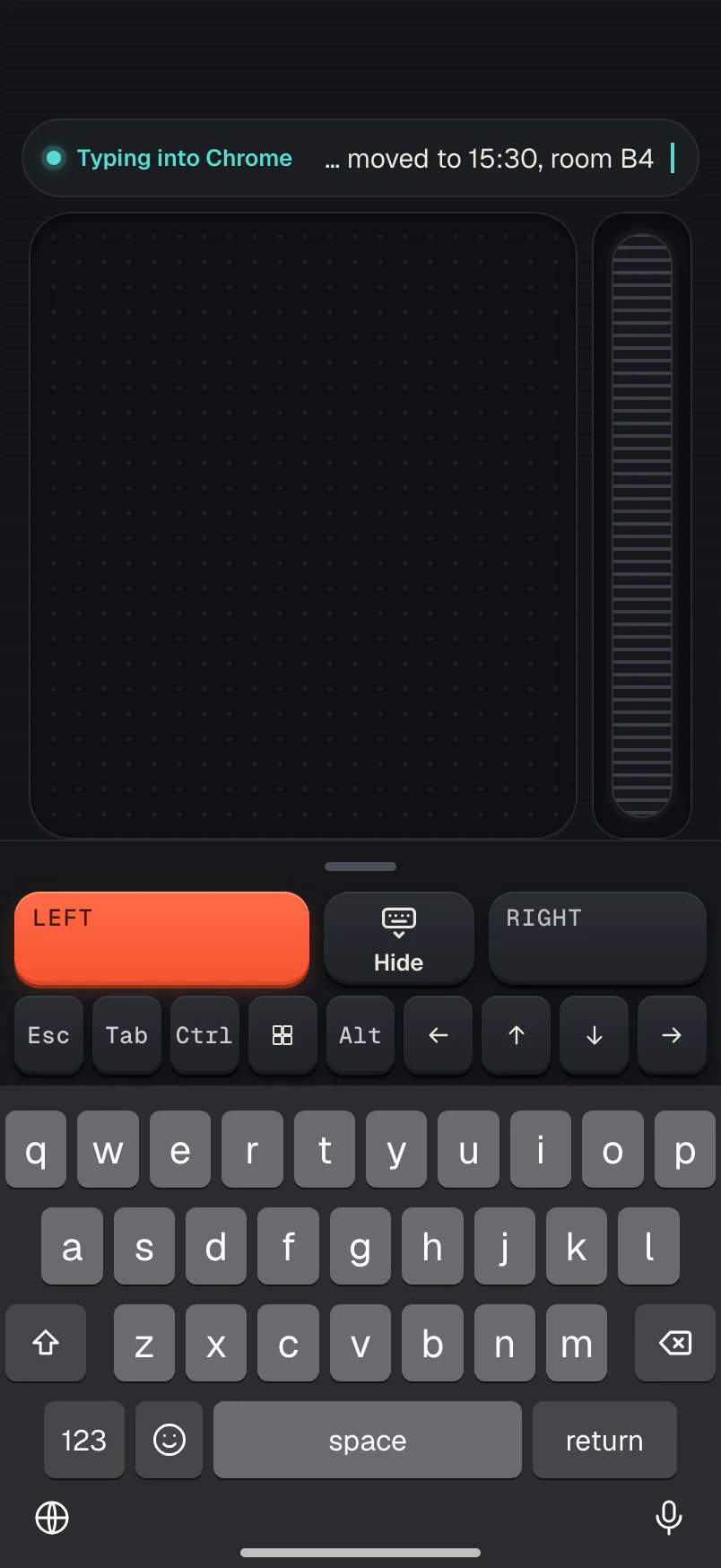
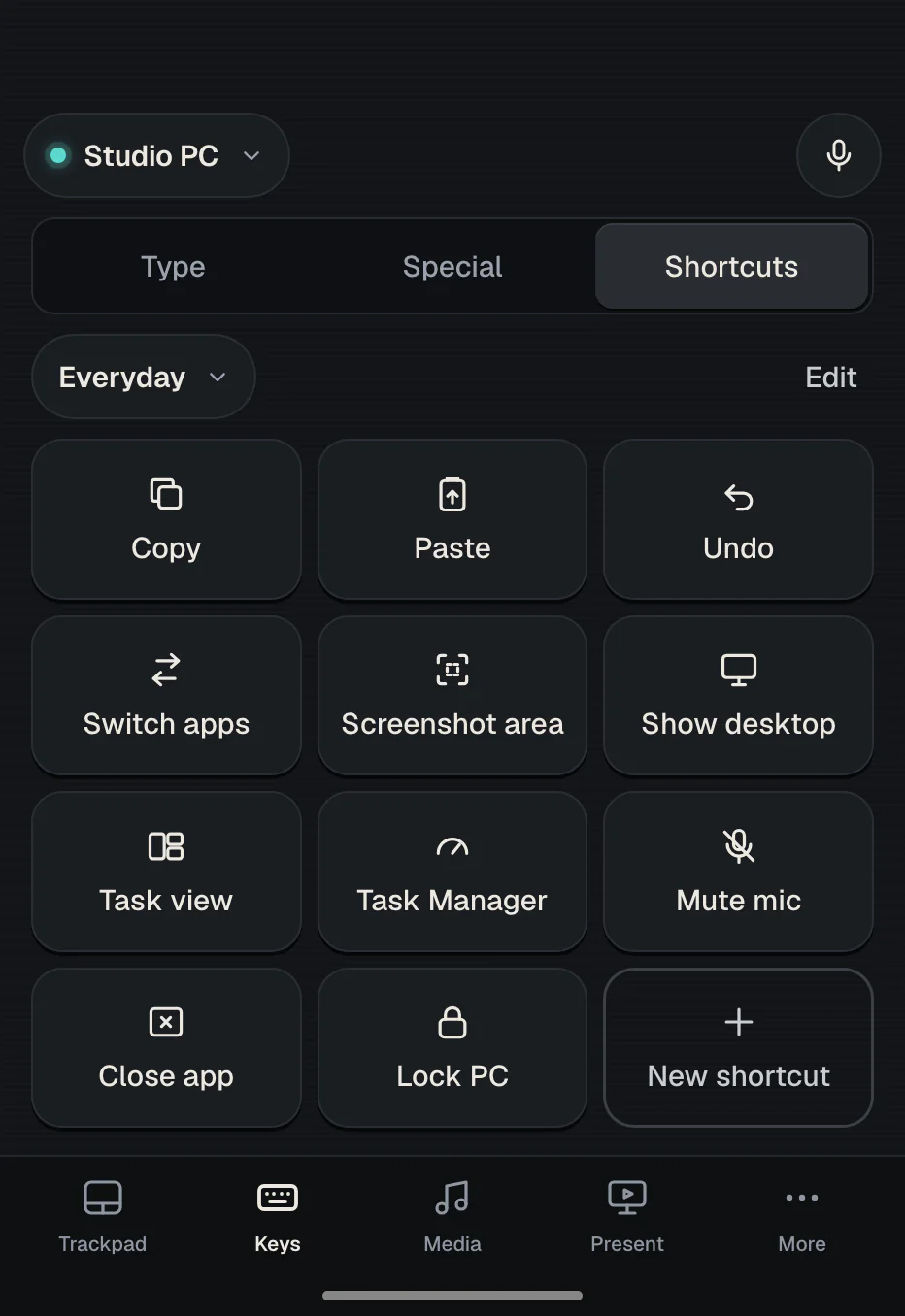
Glide to move, tap to click, two fingers to scroll and right-click. Switch to Keys and type on your iPhone: the words appear on the PC as you go, accents and emoji included.
- Precise pointer with two-finger scroll and drag lock
- Esc, Tab, Ctrl, Windows, Alt, arrows and function keys
- Your own shortcuts, one tap each
Lock Screen alerts
Walk away. Your iPhone will tell you.
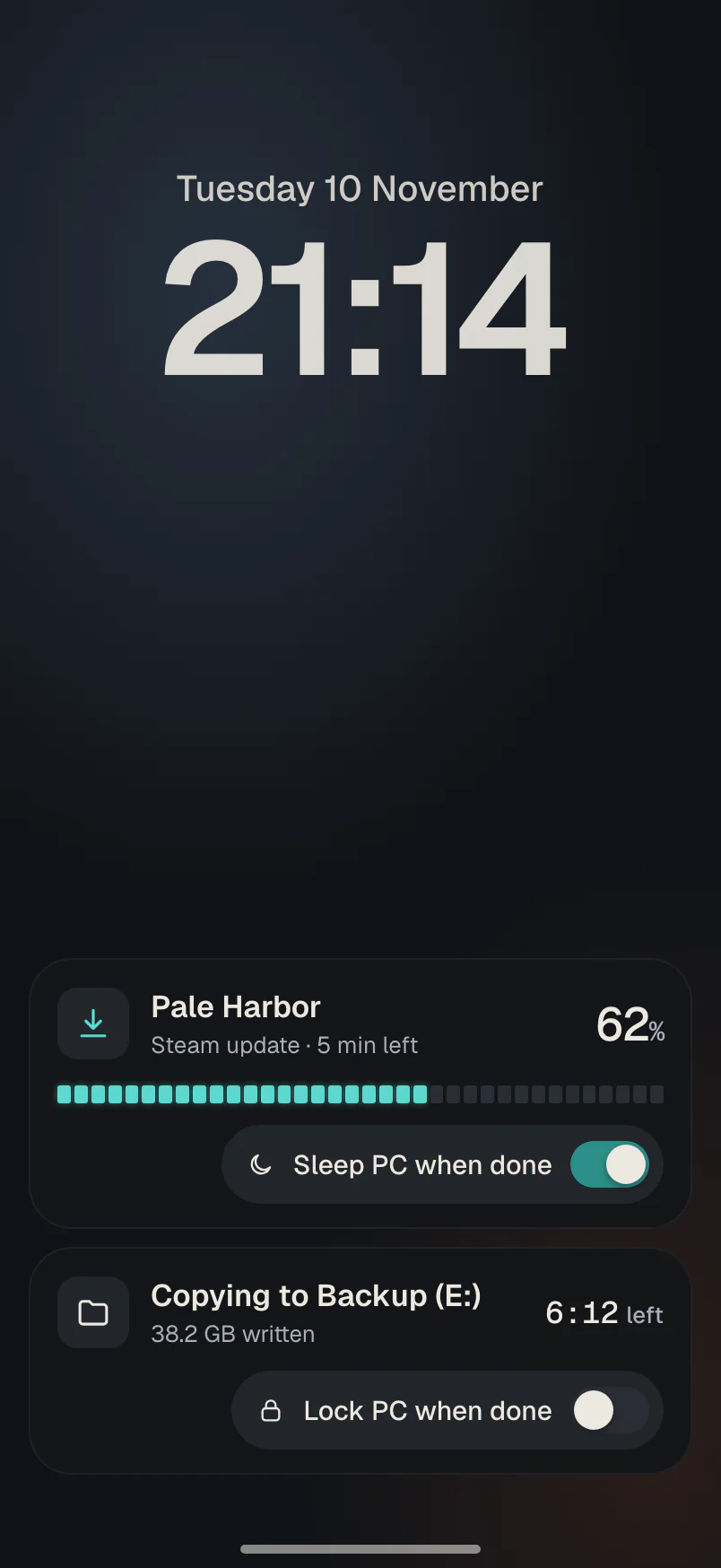
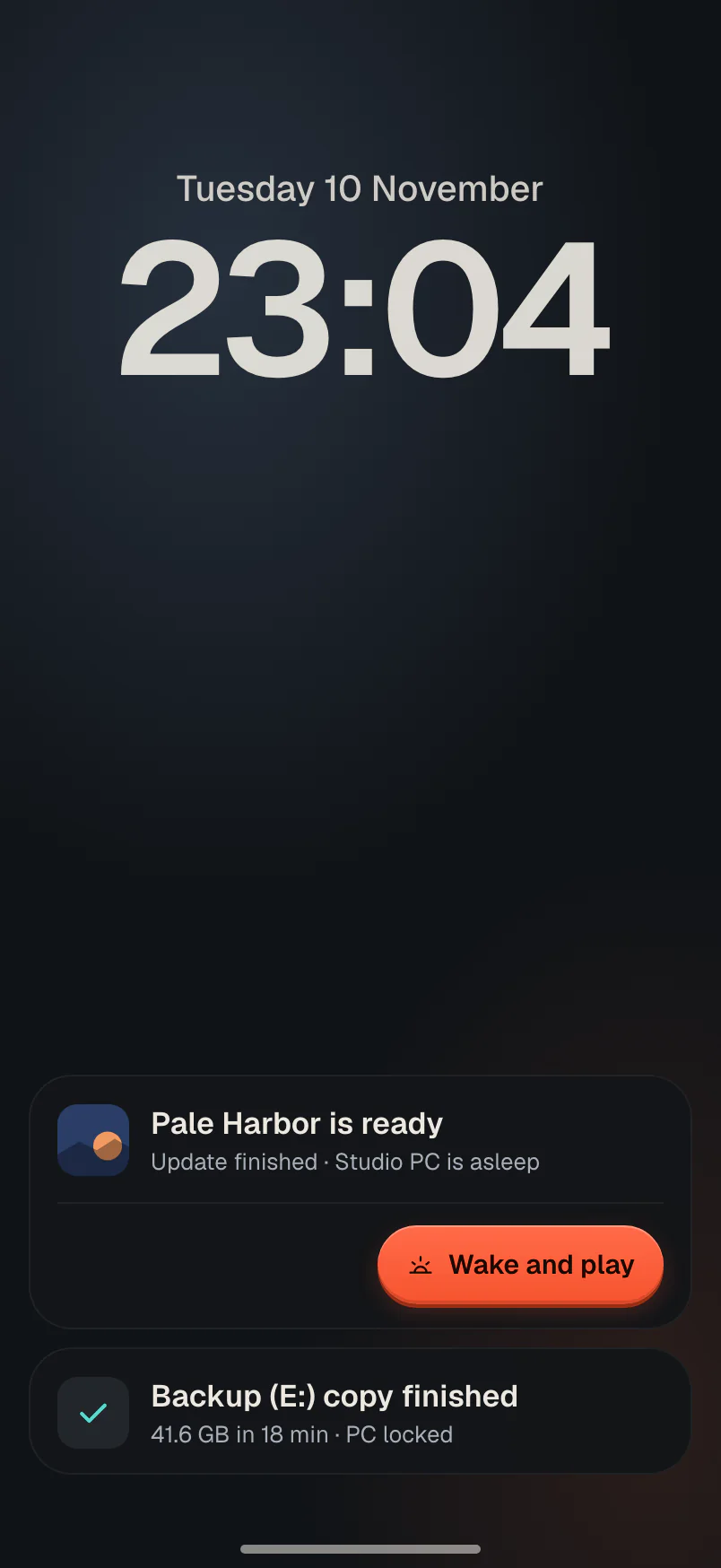
Start a game update or a big copy and go make dinner. Progress shows on your Lock Screen and in the Dynamic Island, and you get a tap when it’s done. Ask Sprag to put the PC to sleep at the end.
- Steam downloads and updates
- Copies to a folder or a drive
- Then: tell me, lock the PC, or sleep it
And the rest of your desk
One app instead of a drawer of gadgets.
Clicker, media remote, wireless mouse, wake button. All in the phone you already carry.
See what’s open
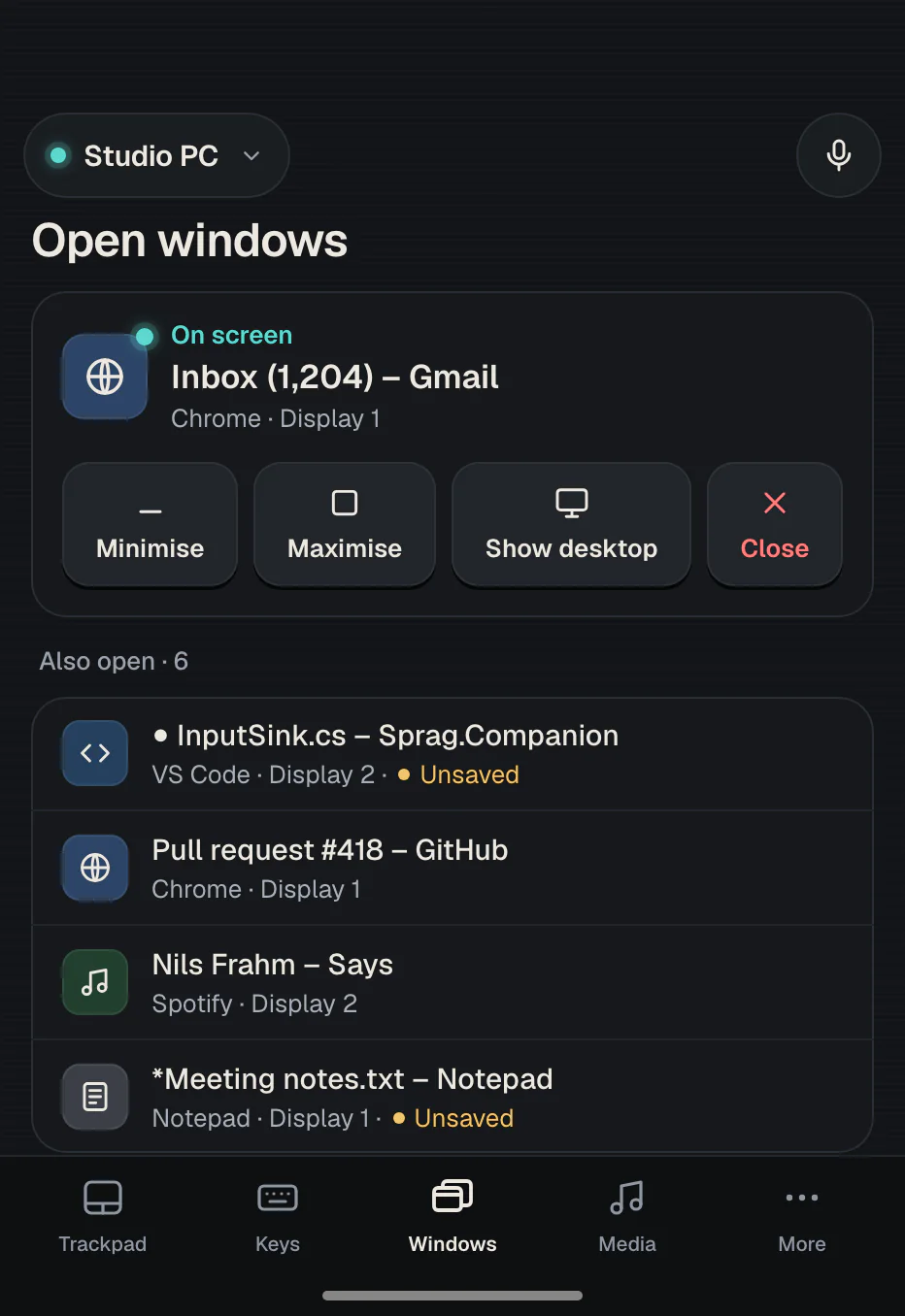
Every window on every display, the one on screen first. Bring it forward, minimise or close it.
Your games, from the couch
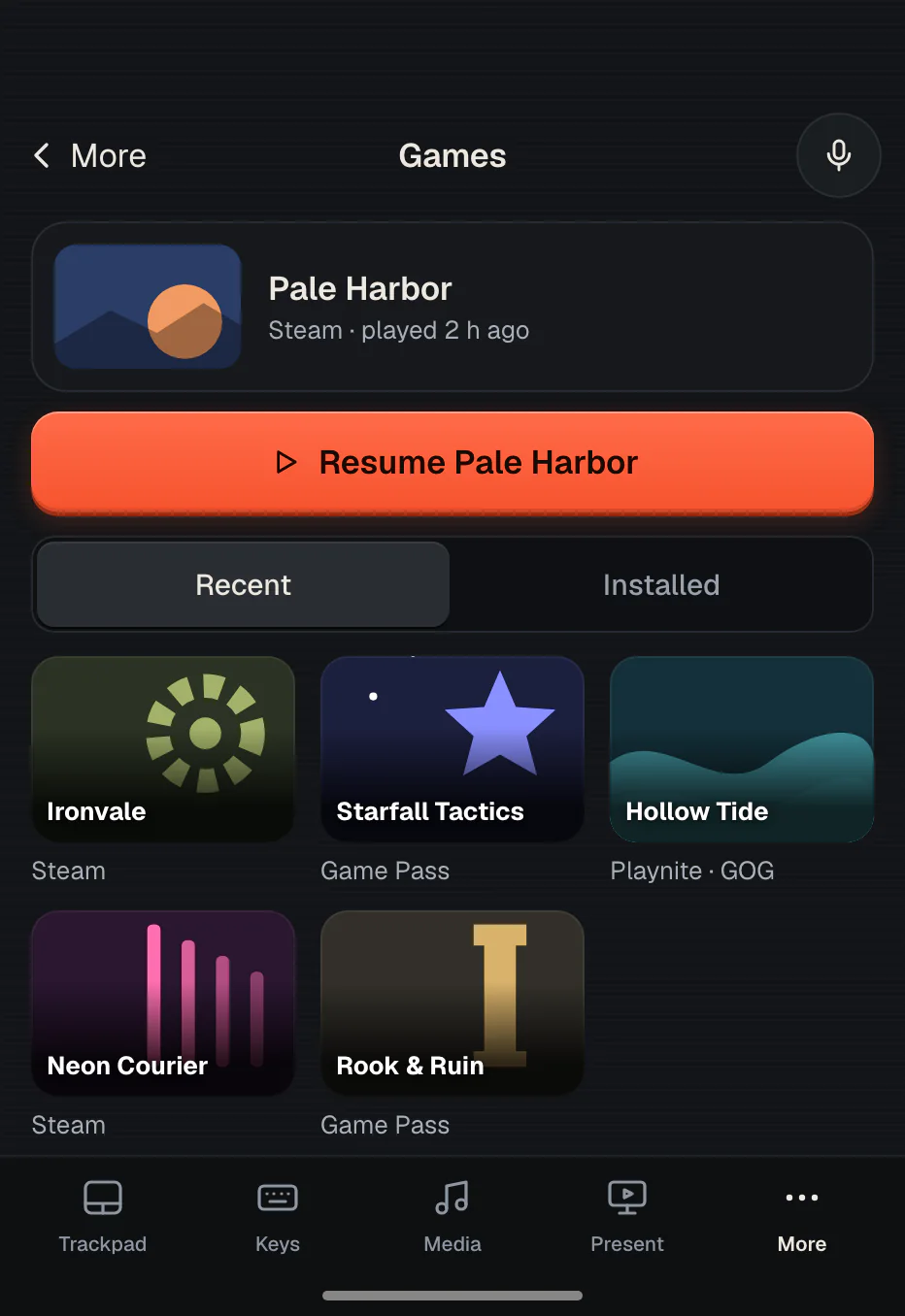
Steam, Xbox and Game Pass, and Playnite in one list. Resume the last game in one tap.
A presenter in your pocket
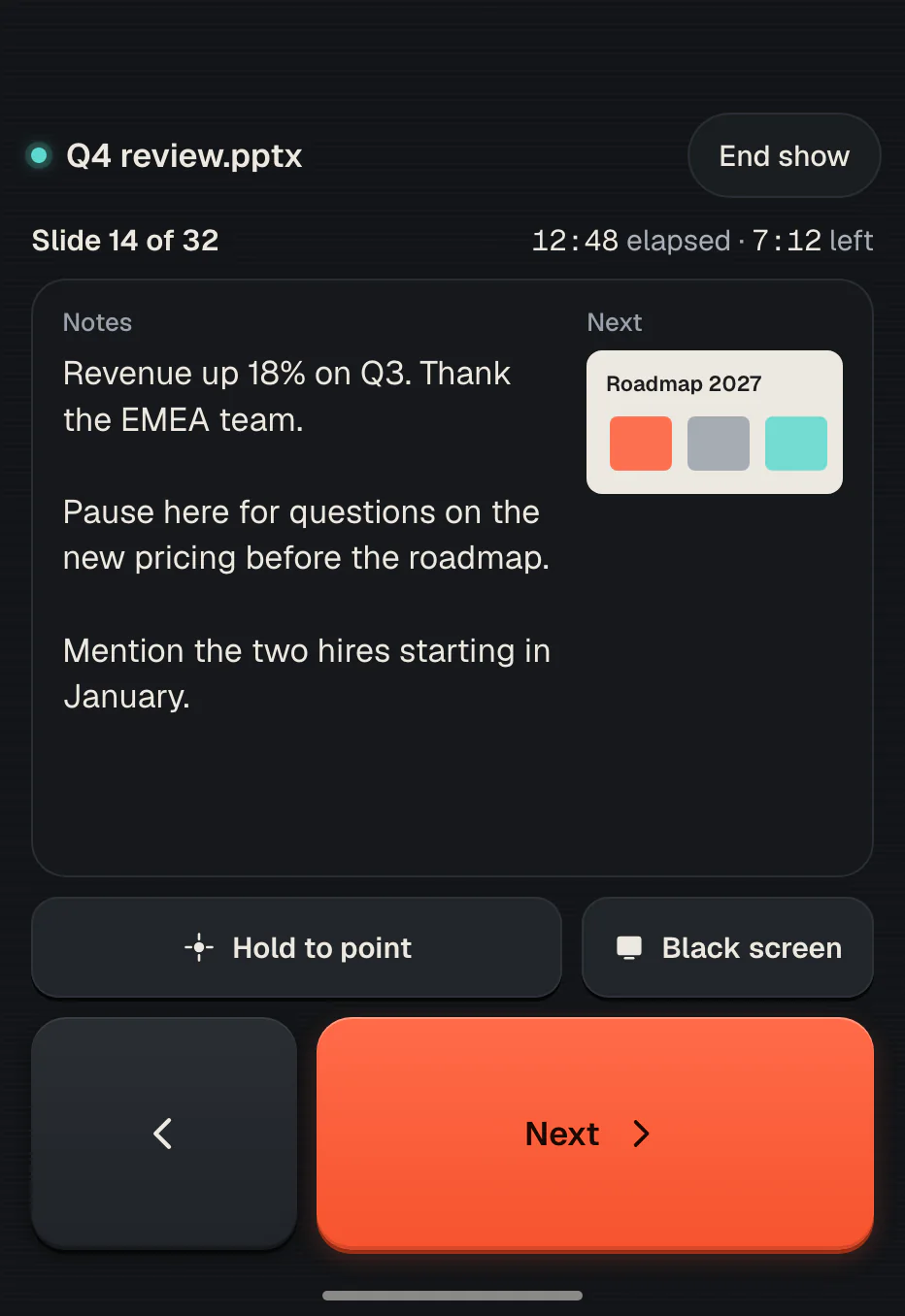
Next and previous, black screen, your notes, the next slide and the time left.
Music and volume
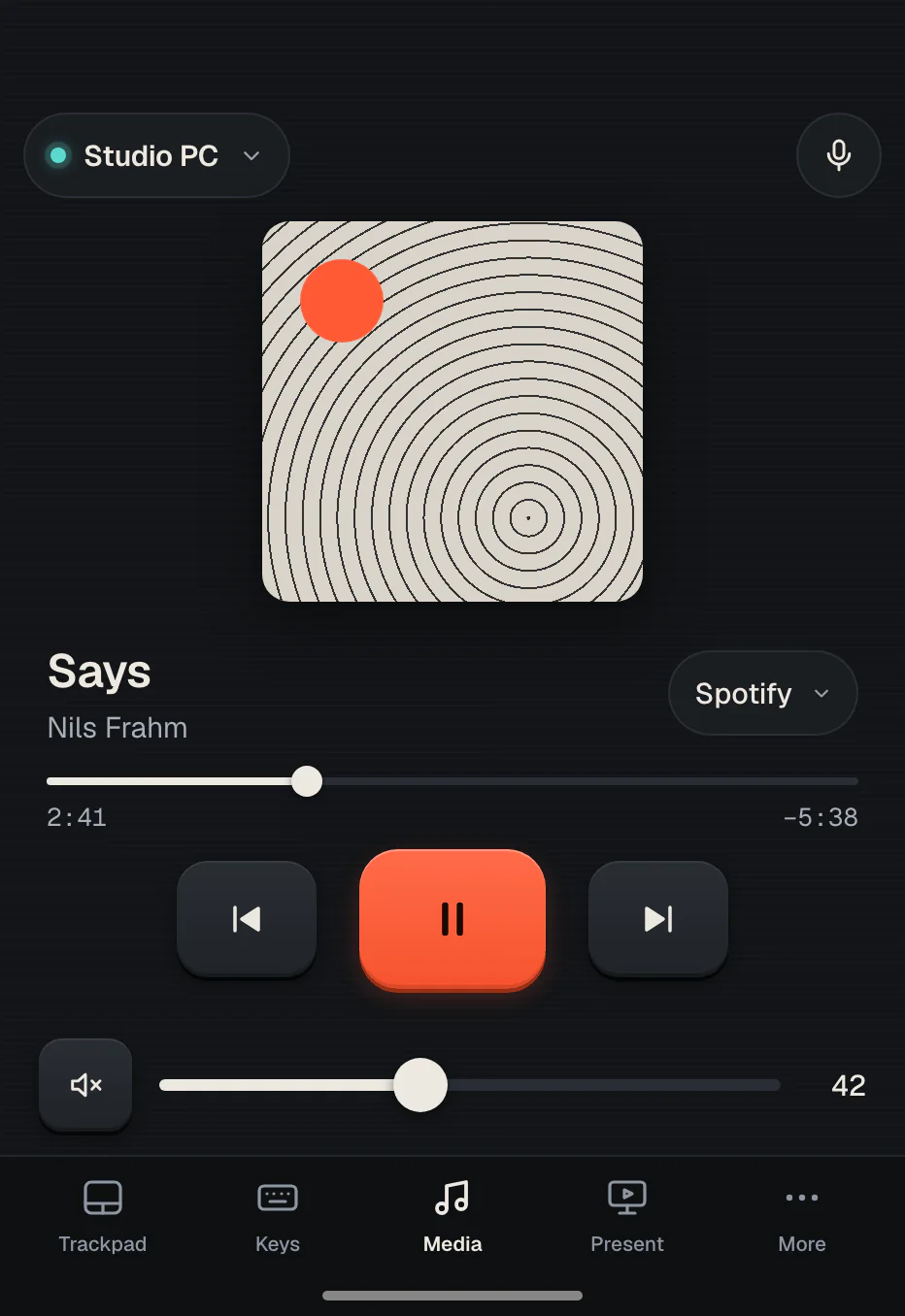
Play, pause, skip and set the volume of whatever is playing on the PC.
Wake it, sleep it, shut it down
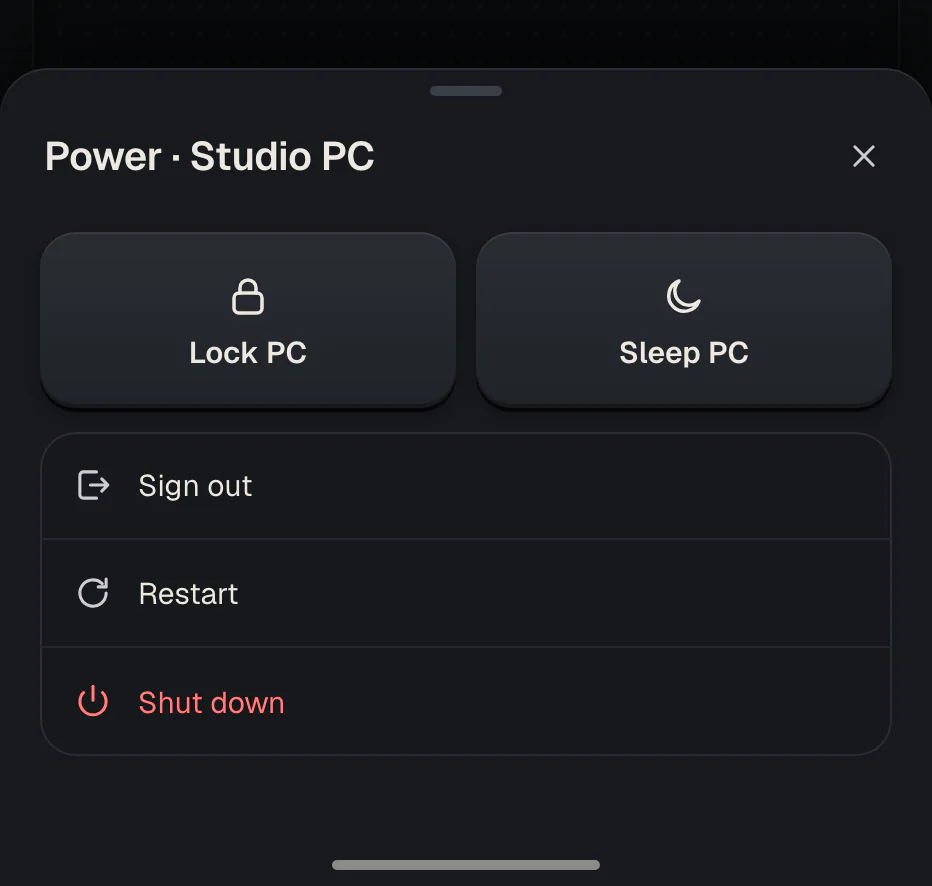
Wake-on-LAN from across the house. Shut down and restart always ask first.
Copy here, paste there
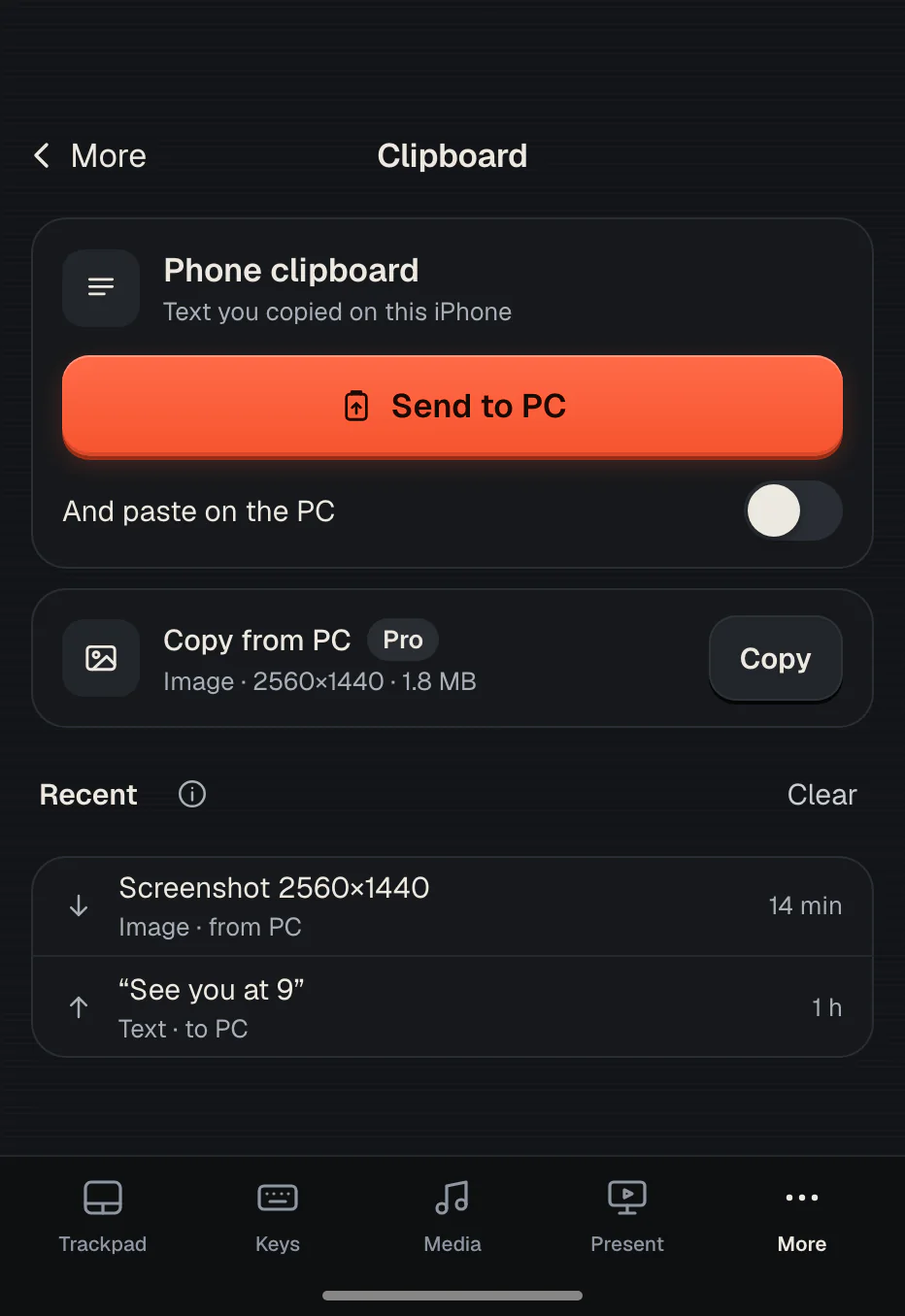
Text and images, both ways: from your iPhone to the PC and back.
Point with the whole phone
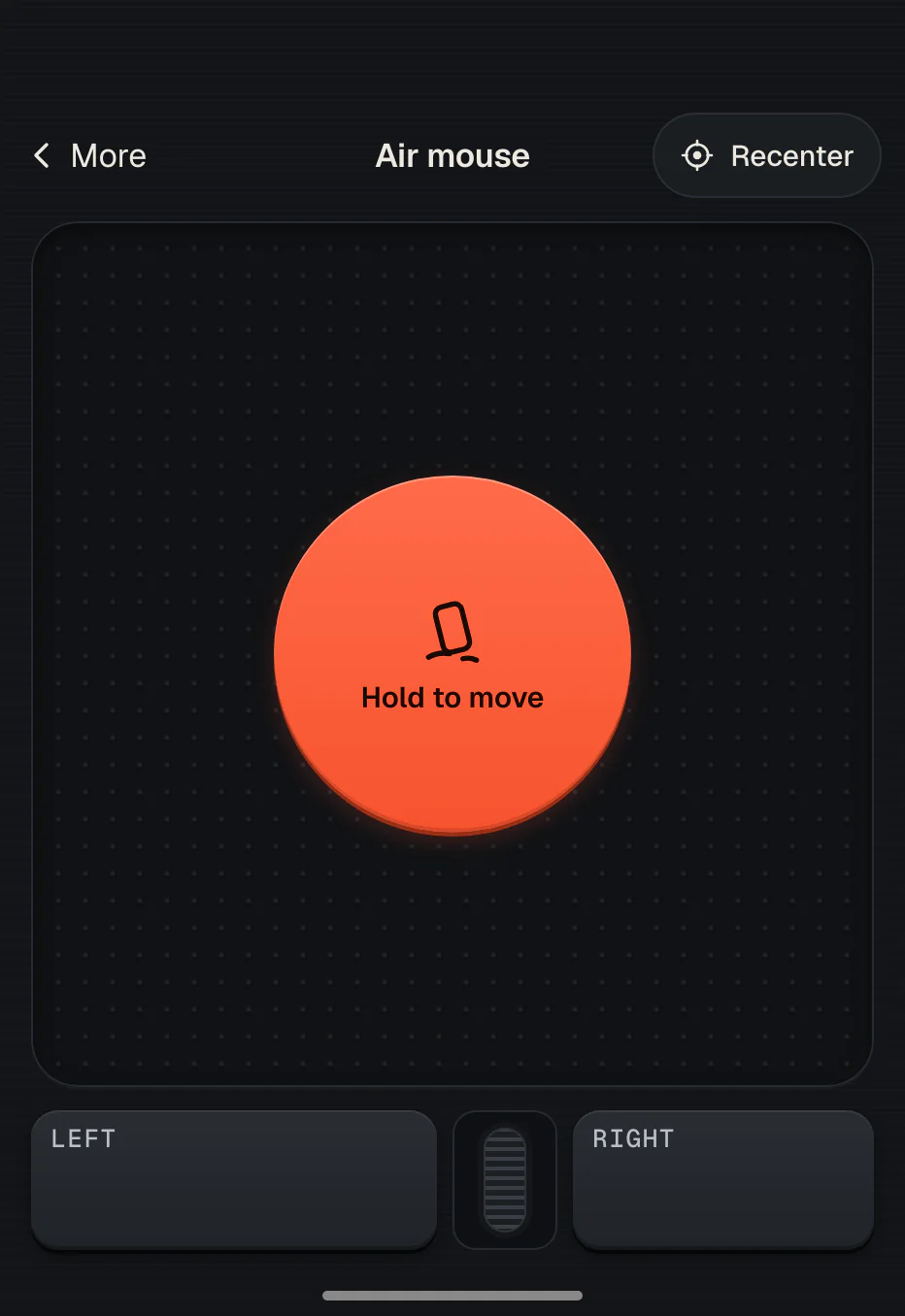
Air mouse: hold and move your iPhone, and the cursor follows.
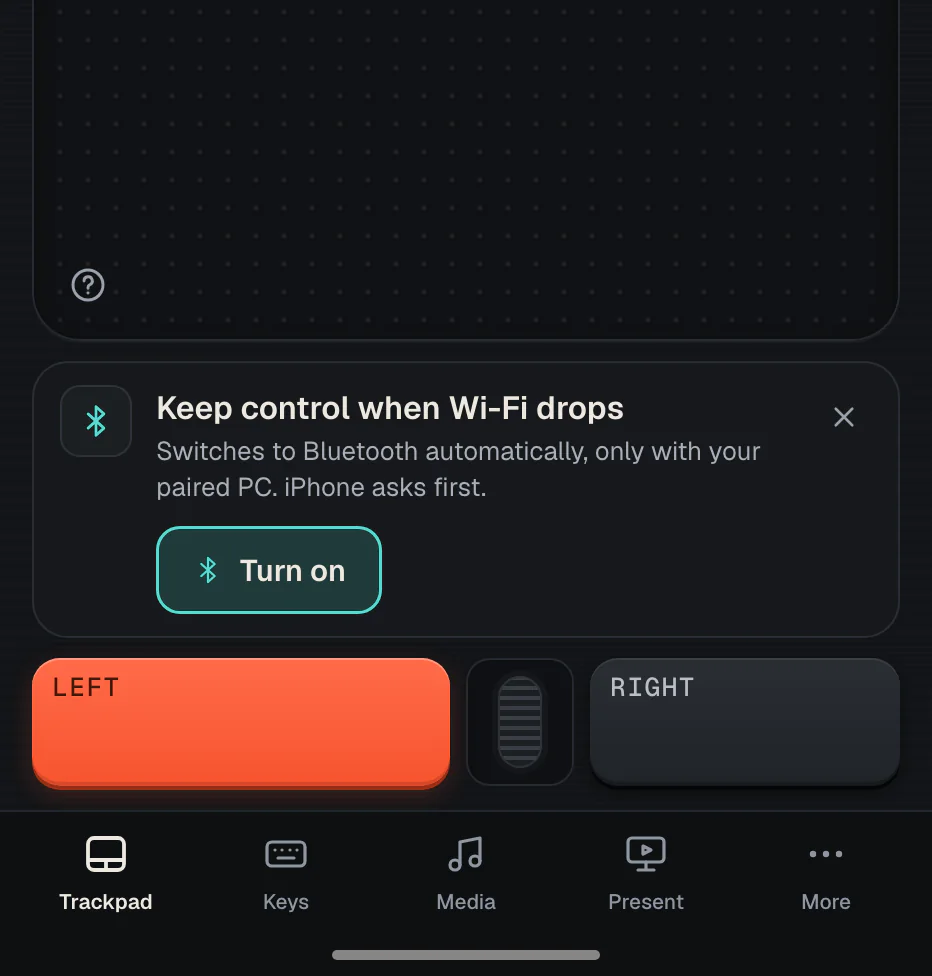
Wi-Fi drops? Keep going
Pointer and keys carry on over Bluetooth, on PCs whose adapter supports it.
Voice
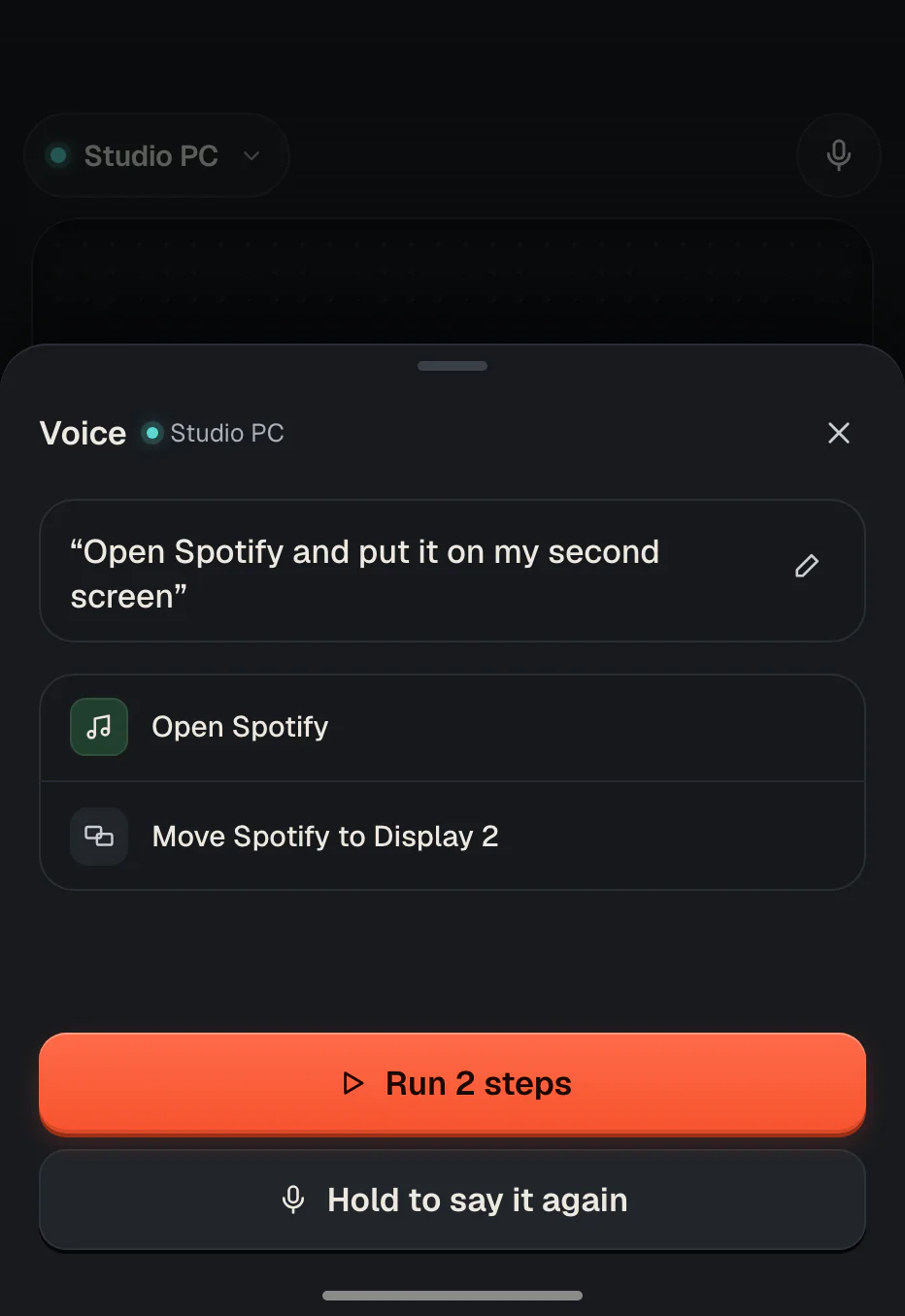
Say it. Check the plan. Run it.
“Open the music player and put it on my second screen.” Sprag turns what you say into steps and shows them first. Nothing happens until you tap Run, and you can stop it at any step.
Works in English and Italian. Before the first use you’re asked to agree: then the sentence, as text, and the names of your open windows go to our AI service to plan the steps. Never audio, never what you type.
Bonus for iPhone Duo
Open your iPhone Duo. Get a laptop.
Any iPhone works with Sprag. On an iPhone Duo, unfold it on the desk: the top half shows your PC’s screen live, the bottom half is a full keyboard and trackpad. Fold it again and it’s a one-hand remote.
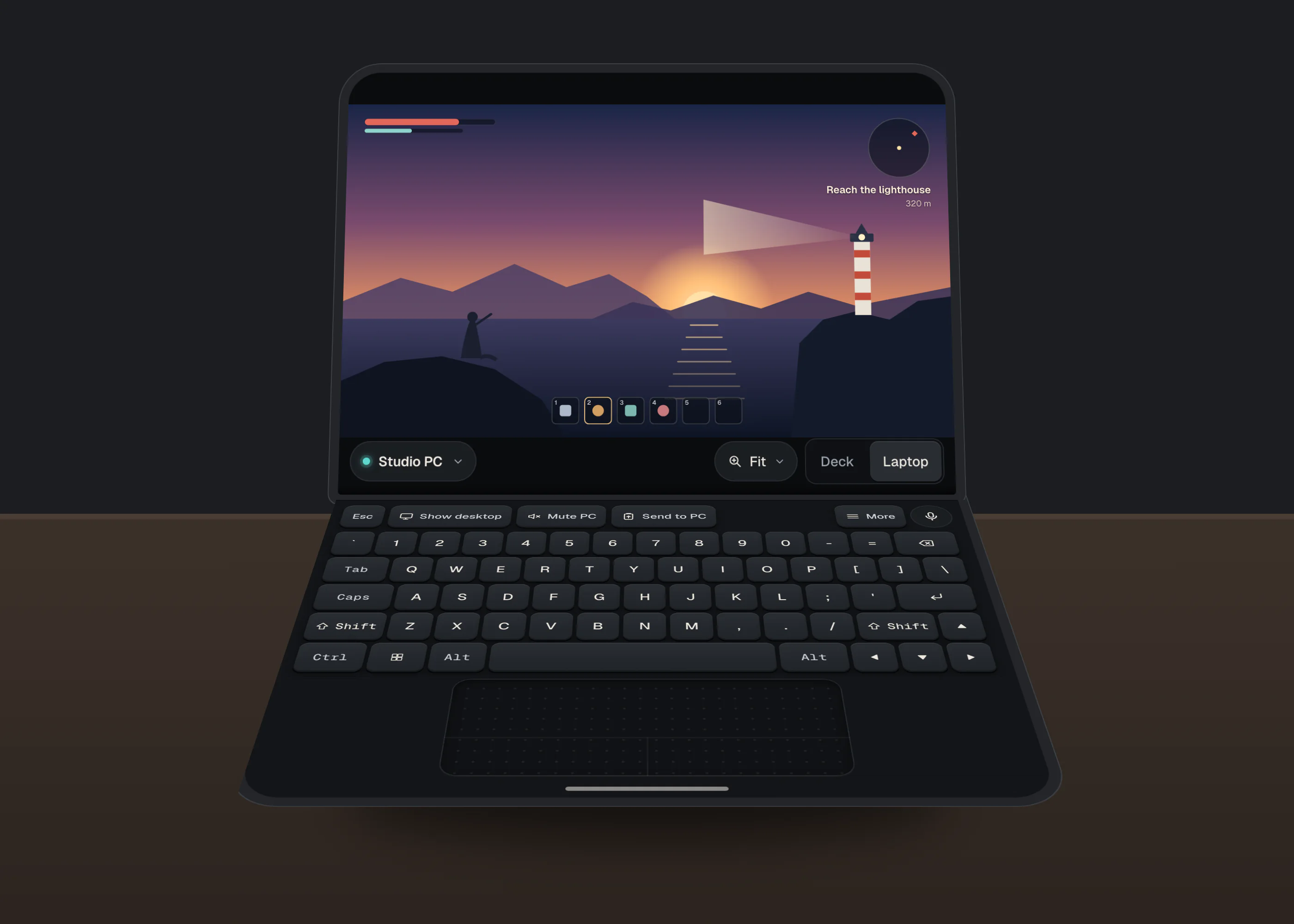
Laptop mode streams your screen over your own network only, and only after you allow it on the PC.
Privacy & security
Your PC, your network, your rules.
An app that moves your mouse should be held to a higher bar. Sprag is built so that a phone on your Wi-Fi can never do more than you allowed.
- A code that won’t keepEncrypted from the first byte. The QR changes every 30 seconds, works once, and is hidden from screen shares and screenshots.
- Control stays on your networkPointer, keys, clipboard and screen go straight from iPhone to PC. Only Lock Screen alerts and voice use our server.
- No scripts, no commandsSprag can’t run scripts, commands or files. Opening apps and links is off until you allow it on the PC.
- A switch for everythingEach phone gets Remote only or Full control, and every ability has its own switch in Sprag’s settings on the PC.
- No account, no trackingNo sign-up. The Windows app has no analytics and keeps its logs on your PC, without anything you type.
- Voice is text, and opt-inOnly after you agree, the sentence you say is sent as text to our AI service to plan the steps. Never audio.
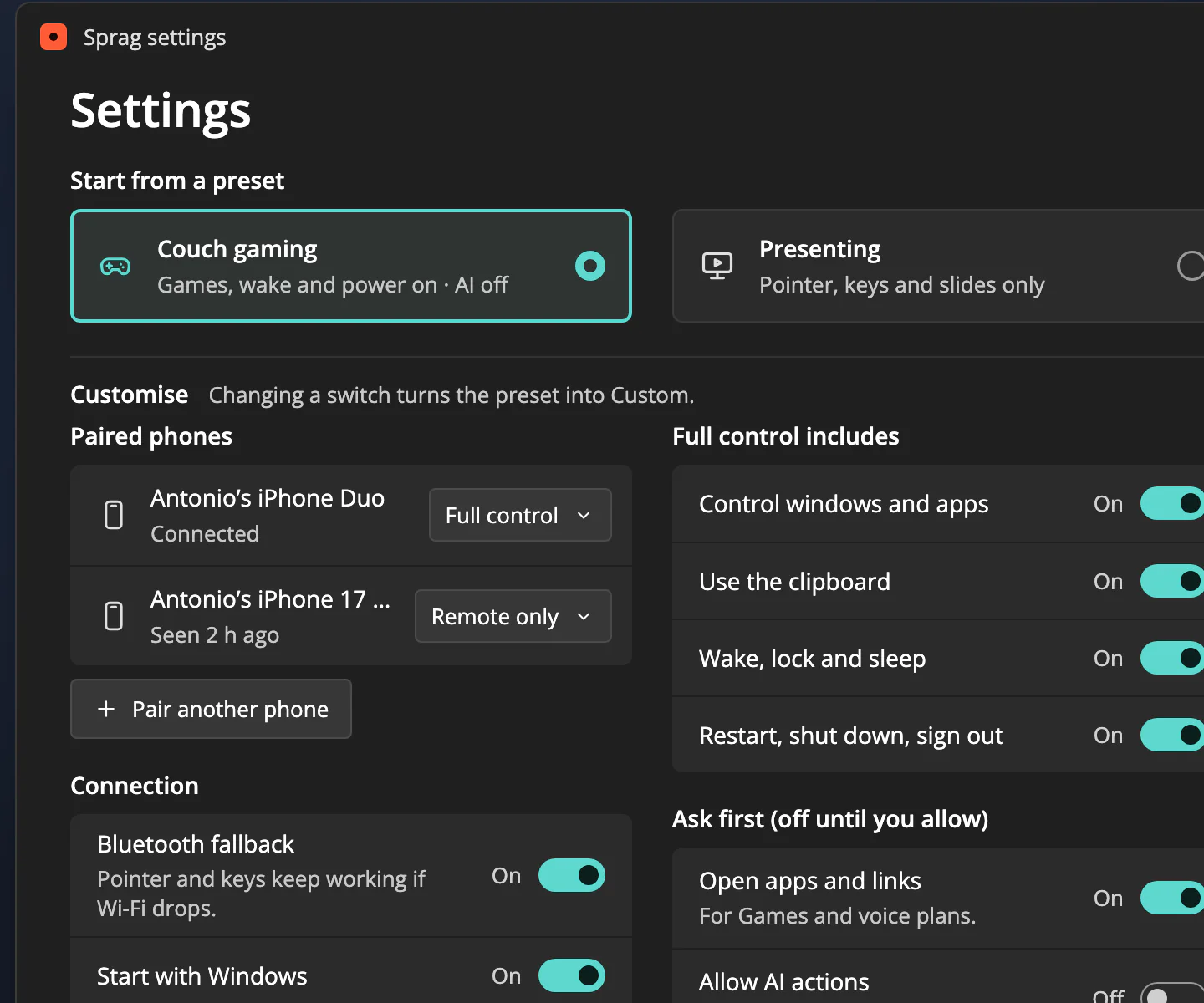
Sprag’s settings on the PC. More in the privacy policy.

Sprag for Windows
Version 0.1.23 preview ·
The free app that lets your iPhone reach your PC. Download it now and your PC is ready when the iPhone app arrives.
Download for Windows- File
- Sprag-Windows-x64-0.1.23.zip
- Size
- 55.7 MB (58,396,220 bytes)
- Needs
- Windows 11 64-bit (x64), on the same Wi-Fi as your iPhone
- iPhone
- iOS 18 or later. Coming soon to the App Store; pricing at launch · email me when it’s out
a7eec8fe8e632395e04be4f603336478c18ad5ae6e6008379cc30221c824b656Check it in PowerShell: Get-FileHash Sprag-Windows-x64-0.1.23.zip
What Sprag does on your PC
- Runs as your normal user: never asks for administrator rights, installs no driver or service.
- Listens only on your local network (port 47800), for the iPhones you paired.
- Connects out only to our server, for Lock Screen alerts and voice, if you use them.
- Starts with Windows once you’ve paired a phone; one click in its menu turns that off.
- No automatic updates in this preview: new versions are posted on this page.
What’s in the zip
Sprag.exe: the whole app in one file. No installer and no runtime; settings and logs go in%LOCALAPPDATA%\Sprag.playnite-extension: optional, lists your Playnite games in Sprag.README-it.txt: setup notes in Italian (the same steps, in English, are on the support page).

Made by Antonio Giarrusso, founder of Userbot (about me). I built Sprag because I wanted my iPhone to be the remote for my own Windows PC. Questions or problems: ciao@antonio.ai.
First launch, honestly
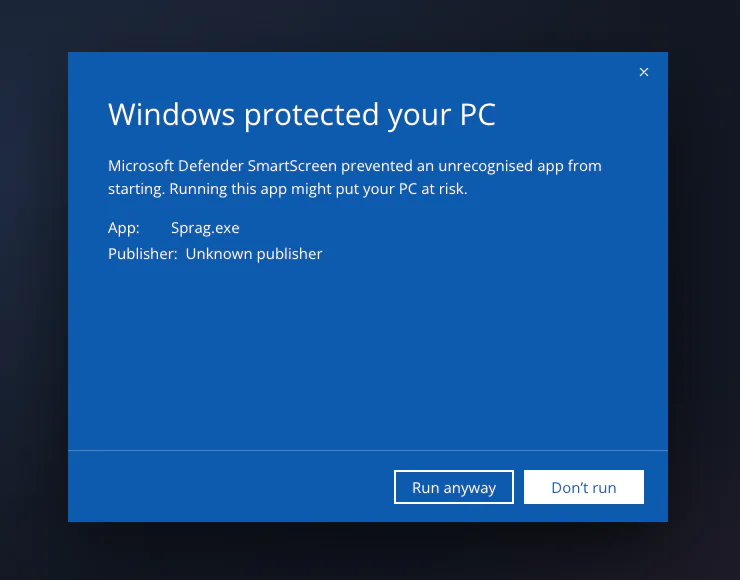
This is a preview and it isn’t code-signed yet, so Windows asks twice the first time.
01“Windows protected your PC”: click More info, then Run anyway.
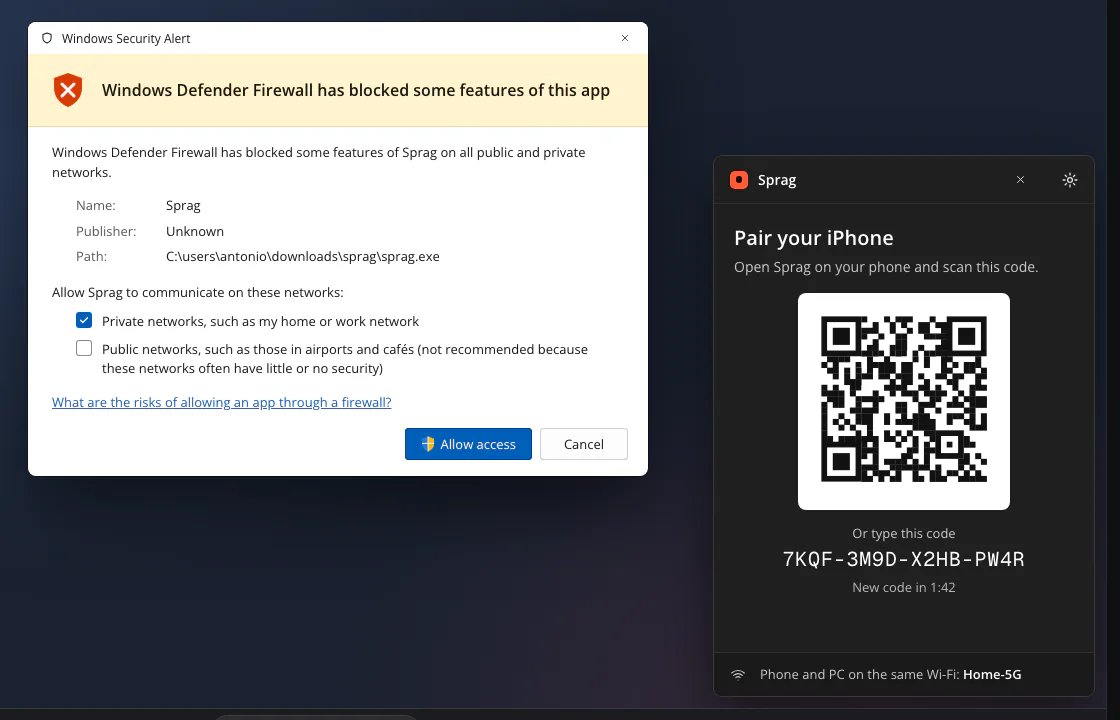
02Windows Firewall: keep Private networks ticked and click Allow access.
FAQ
Questions, answered.
Windows says “Windows protected your PC”. Is that normal?
Yes, for this preview. Sprag isn’t code-signed yet, and Microsoft Defender SmartScreen warns about every new unsigned app. Click More info, check that the app is Sprag.exe, then click Run anyway. Windows asks only the first time.
The SHA-256 checksum in the download box (and in SHA256SUMS.txt) tells you the zip arrived complete and unchanged from the one published here. It isn’t a signature: a code-signed version is planned.
Why does Windows Firewall ask about Sprag?
Your iPhone has to reach Sprag on your home network. Tick Private networks and click Allow access. Leave Public networks unticked: Sprag isn’t meant for café or airport Wi-Fi.
When is the iPhone app out?
Soon: it’s coming to the App Store. Install the Windows app now and your PC is ready the day it lands. Email me and I’ll write back once when it’s out.
What do I need?
A PC with Windows 11 (64-bit, x64) and an iPhone with iOS 18 or later, both on the same Wi-Fi network (not a guest network). No .NET or other runtime to install: everything is in the zip.
Do I need an iPhone Duo?
No. Sprag works on every iPhone. On an iPhone Duo it adapts: closed it’s a one-hand remote, open it becomes a laptop with your PC’s screen on top.
Does it work away from home?
Control works on the network you share with your PC, and over Bluetooth nearby if Wi-Fi drops. Pointer, keys and screen are never relayed over the internet. Lock Screen alerts do reach you anywhere, through our server.
How much does it cost?
The Windows app is free. The iPhone app’s pricing isn’t final yet: some features, marked Pro in the app, will be a paid upgrade. The price will be on the App Store page at launch, so you’ll see it before you pay anything.
How do I remove it?
Right-click the Sprag icon next to the clock, untick Start with Windows, click Exit, then delete the Sprag folder. Settings and logs are in %LOCALAPPDATA%\Sprag: delete it too to remove everything. More help.

Get your PC ready.
Two minutes on the PC today, and your iPhone takes over the day the app is out.
Download for WindowsFree · v0.1.23 preview · 55.7 MB · Windows 11 x64